
Applying for jobs gets messy fast. After the first dozen applications, it’s hard to remember which companies wrote back, who you still owe a follow-up email, and when your next interview is. A job application tracker keeps all of it in one place, so good opportunities don’t slip through the cracks.
This job application tracker template works in Microsoft Excel and Google Sheets. You type each job in once, pick a status from a dropdown, and the dashboard, calendar, and follow-up reminders update on their own. No macros, no add-ins, and no sign-up.
Why You Need a Job Application Tracker
A serious job search can mean dozens of applications spread across LinkedIn, Indeed, company career pages, recruiters, and referrals. Each one comes with its own dates, contacts, and next steps. So when all of that lives in your inbox and a pile of browser tabs, things get missed.
A simple job search tracker helps you:
- Follow up on time. A short, polite check-in after you apply can put your name back in front of a recruiter, but only if you remember to send it.
- Walk into every interview prepared. That way, you’ll know the round, the time, who you’re meeting, and what you planned to ask.
- See what’s actually working. When you log where each application came from, you can tell whether job boards, referrals, or recruiters lead to interviews and offers.
- Compare offers with a clear head. Base pay, bonus, paid leave, and deadlines side by side beat a stack of emails.
Of course, trying to keep track of job applications in your head works for about a week. A good spreadsheet works for the whole search.
Why a Spreadsheet Beats Most Job Tracking Apps
There are plenty of job tracking apps out there, but many of them want an account, show ads, or keep your data inside their platform. A job tracker spreadsheet is yours. For example, it works offline in Excel, syncs across devices in Google Sheets, and you can rename a label or add a column whenever you like.
People often ask what the best way to track job applications is. Honestly, it’s simply the one you’ll keep using. For most job seekers that’s a clean sheet that takes a few seconds to update after each application.
What’s Inside This Job Application Tracker Template
The workbook has eight sheets. Each one handles a single part of your job hunt, and they all feed into each other, so you only type things once.
1. Start Here: Set It Up Once
Add your name, target job title, target salary, currency, and the date your search started. In addition, this sheet holds the dropdown lists used across the workbook. You can rename the sources (LinkedIn, Indeed, Company site, Referral, Recruiter, Other) and the interview modes to fit the way you search. Similarly, statuses can be renamed, as long as you keep them in the same order.
2. Dashboard: Your Whole Job Search at a Glance
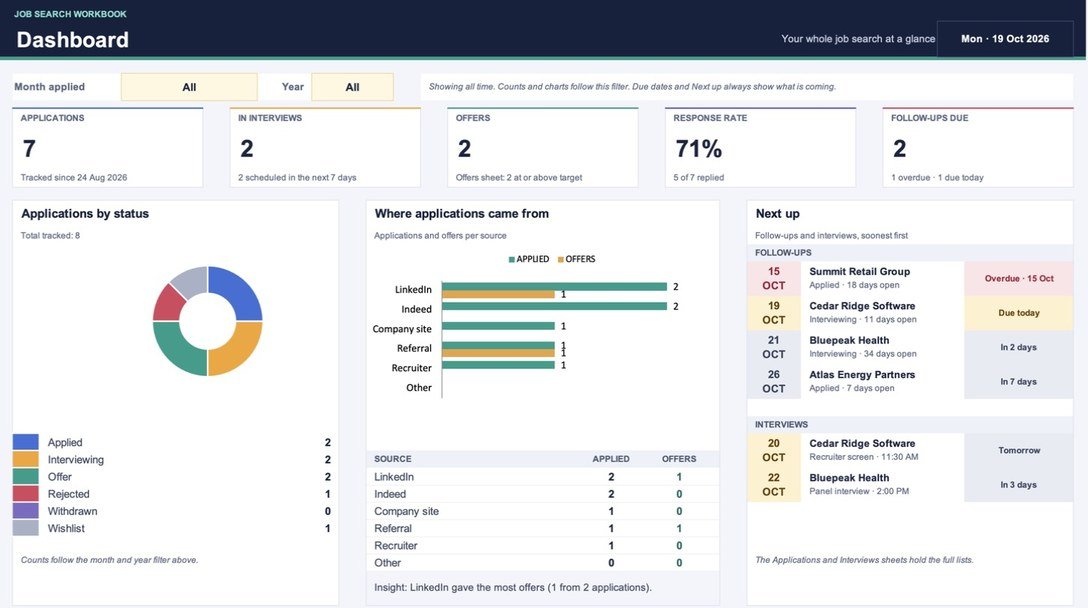
The dashboard opens with five cards: total applications, how many are in interviews, offers received, your response rate, and follow-ups that are due or overdue. Below them, you’ll also find a donut chart of applications by status, a bar chart comparing applications and offers by source, and a Next Up panel with your four nearest follow-ups and next three interviews.
Use the Month and Year filters to look at a single month, a full year, or all time. Years from 2024 through 2040 are built in, so this job hunt tracker keeps working long after this year’s search is over.
3. Applications: One Row Per Job
This is the heart of the job application tracking spreadsheet. Each row holds the company, role, source, date applied, status, follow-up date, location, work mode (Remote, Hybrid, or On-site), salary range, contact, job link, and notes. In total, there’s room for 500 applications, and the header row has filters so you can sort or narrow the list in seconds.
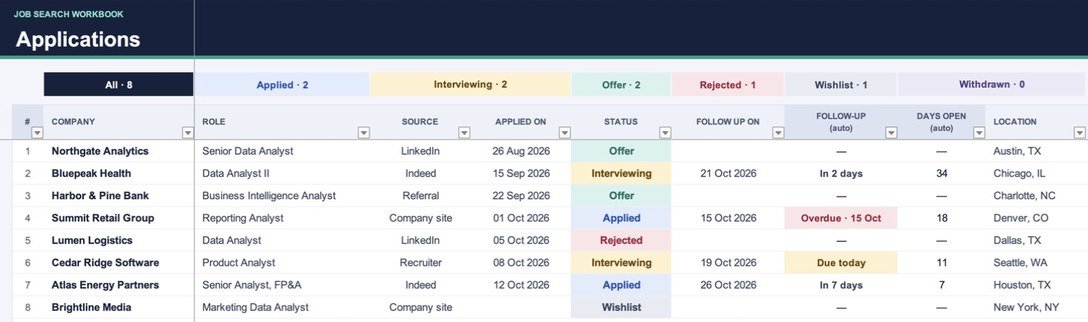
On top of that, two columns fill themselves in. Follow-Up shows Overdue, Due today, Tomorrow, or “In 5 days,” and Days Open counts how long an active application has been waiting. Meanwhile, status cells change color automatically, and the counters at the top show how many jobs sit in each stage: Wishlist, Applied, Interviewing, Offer, Rejected, and Withdrawn.
4. Interviews: Every Round in One Place
Log each interview round with the company (picked from your Applications list), round name, date, time, mode, prep status, result, interviewer, and notes or questions. Upcoming interviews are highlighted. Also, a past date that still says Pending turns red so you remember to update the result.
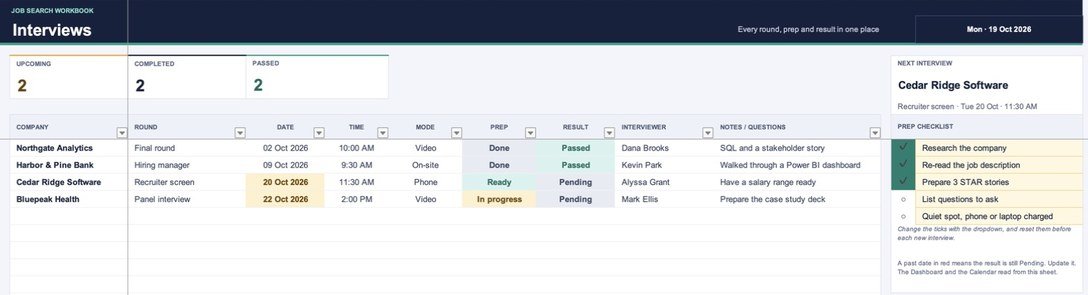
At the same time, cards at the top count upcoming, completed, and passed interviews. Next to the table, a Next Interview card shows what’s coming up, and a five-step prep checklist (research the company, re-read the job description, prepare three STAR stories, list questions to ask, and find a quiet spot with your phone or laptop charged) helps you show up ready.
5. Offers: Compare Up to Four Job Offers
When offers come in, enter the base salary and bonus for up to four of them side by side. You can type the bonus as 10 or 10%. Then the sheet works out the bonus amount, total pay, and how far each offer sits above or below your target salary. A bar compares total pay with your target, the top offer gets a Best total pay tag, and the days left before each offer deadline are counted for you.
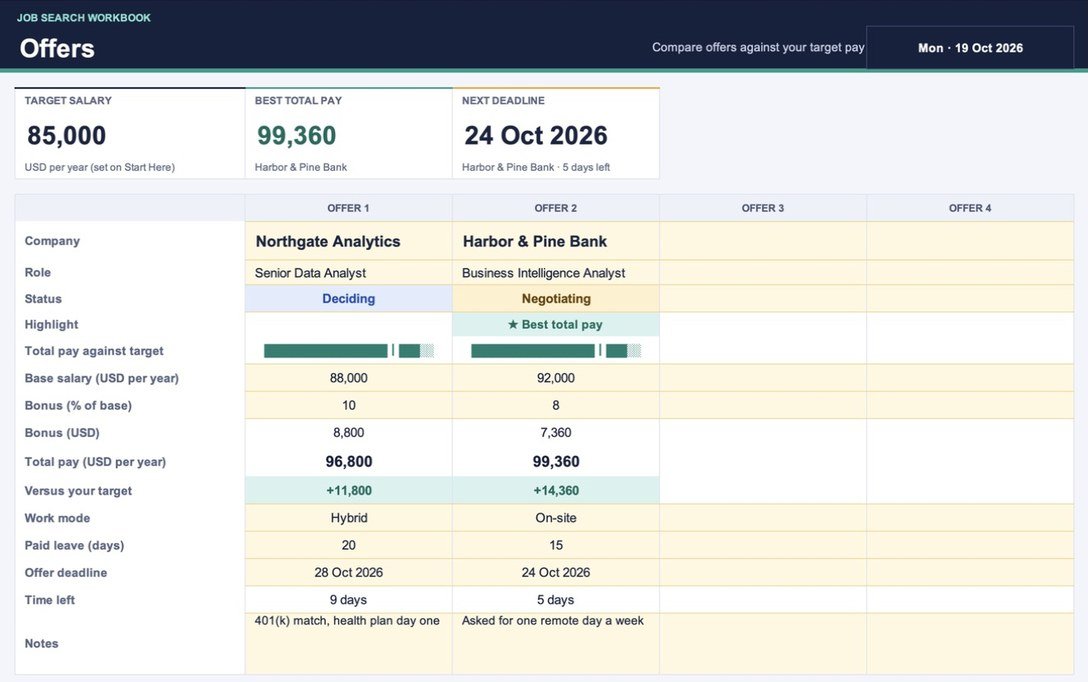
Besides pay, there are rows for work mode, paid leave, and notes, because the biggest number isn’t always the best job.
6. Calendar: Interviews, Follow-Ups, and Deadlines
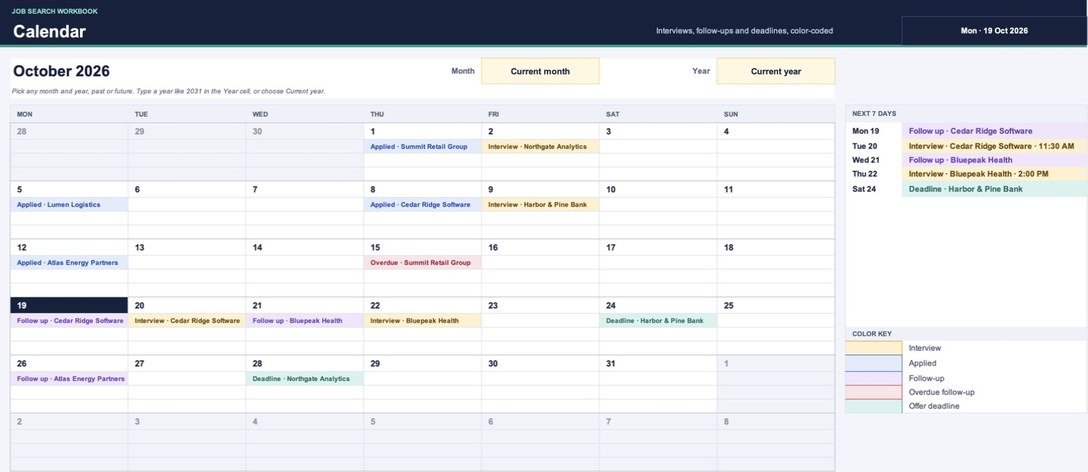
The calendar pulls dates from the other sheets and places them on a monthly grid: applications sent, follow-ups, overdue follow-ups, interviews, and offer deadlines, each in its own color. In addition, a Next 7 Days list sits beside the grid. Pick any month and year, past or future, or leave it on Current month so it always opens on today.
7. Companies and Resume Bullets
Companies is a research list for places you’d like to work. It has columns for website, location, industry, company size, a 0 to 5 rating that turns into stars, your interest level, and an automatic Applied? column that shows your current status with that employer.
Resume Bullets stores your best achievements with a category, the skills involved, and the impact, so you can paste a strong line into an application or cover letter without rewriting it every time. If you need a fresh resume to go with it, browse our ATS-friendly resume templates.
How to Use the Job Application Tracker
Getting started takes about five minutes:
- Download the Excel file or make a copy in Google Sheets using the buttons above.
- Open Start Here and fill in your name, target job title, target salary, and start date in the cream cells.
- Add each job to Applications, one row per job. Use the dropdowns for source, status, and work mode.
- Set a follow-up date every time you apply, so the tracker can remind you when it’s time to check in.
- Log interviews on the Interviews sheet as soon as they’re booked.
- Add offers to the Offers sheet to compare them against your target pay.
- Check the Dashboard once a week to see your response rate and anything that needs attention.
Cream cells are for typing. White cells, on the other hand, hold formulas, so leave them alone and they’ll keep doing the math for you.
Job Application Tracker for Google Sheets
Prefer working in the browser? Then click Google Sheets – Make a Copy and Google will save an editable copy to your own Drive. The job application tracker Google Sheets version has the same sheets, dropdowns, colors, dashboard, and calendar as the Excel file, and you can update it from your phone with the Google Sheets app.
On the other hand, if you’d rather work offline, the job application tracker Excel file opens in Microsoft Excel just like any other .xlsx workbook.
Tips to Keep Track of Job Applications Without Burning Out
- Log it the same day. First, add the row right after you hit submit, while the job link and contact name are still on your screen.
- Save roles you haven’t applied to yet. Instead of losing them, the Wishlist status keeps them on your radar without counting them as applications.
- Clear overdue follow-ups first. After all, the red items on the Dashboard and Calendar are the easiest wins of the week.
- Review your sources every few weeks. If referrals bring interviews and job boards don’t, spend more time reaching out to people.
- Keep notes short and specific. “Asked about SQL, range $90K–$100K” will help you more later than a long paragraph.
- Build a routine around it. Generally, a daily slot for applications and a weekly review works better than bursts of effort. Our habit tracker template can help you stick to it.
Frequently Asked Questions
Do I need an account to use this job application tracker?
No. Download the Excel file or make a copy in Google Sheets and start using it right away. There’s no email or sign-up required.
Does it work in both Excel and Google Sheets?
Yes. Download the .xlsx file for Microsoft Excel, or use the Make a Copy button to get your own Google Sheets version with the same features.
Do I need to know formulas to use it?
No. Everything is already set up. As a result, you only type in the cream cells and pick options from the dropdowns, and the rest updates automatically.
How many applications can I track?
The Applications and Interviews sheets each have 500 rows ready to use, Companies has 300, and Resume Bullets has 200. However, if you ever need more, copy the last row down.
Can I change the statuses and job sources?
Yes. Edit them on the Start Here sheet and every dropdown in the workbook uses your version. For statuses, keep the same order, because colors and counts follow the position in the list.
Can I use it as an internship application tracker?
Absolutely. Students can use the same sheets as an internship application tracker. The statuses, follow-ups, interview log, and calendar work the same way for internships as they do for full-time roles.
Does the calendar work for future months?
Yes. Pick any month from the dropdown and choose or type any year, and the calendar redraws itself with the right dates and events.
Download Your Job Application Tracker Now
Stop digging through your inbox to remember where you applied. Grab this job application tracker template Excel file or the Google Sheets copy, add your first few applications, and let the dashboard and calendar handle the rest.
No sign-up needed. Just download, open it in Excel or Google Sheets, and start tracking today.